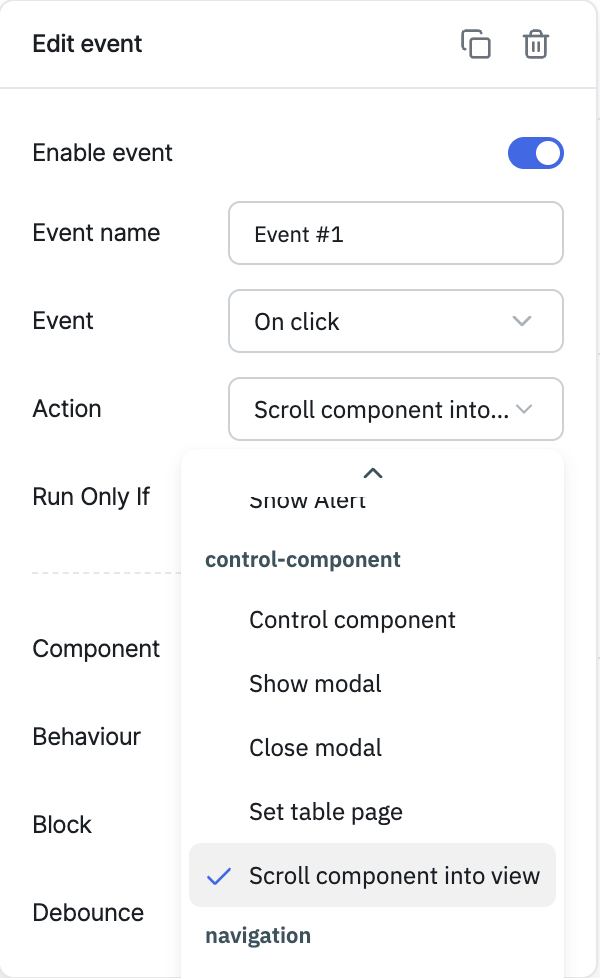
Scroll Component into View
Use this action to scroll a specific component into the visible area of the app. This is useful for guiding users to a component after an interaction, for example, scrolling down to a validation error, a newly added table row, or a section that's currently outside the viewport.
Configuration
| Parameter | Description |
|---|---|
| Component | Select the target component from the dropdown. Components nested inside a Modal aren't listed here, since they're only rendered when the modal is open. |
| Behaviour | Controls the scrolling animation. Smooth (default) animates the scroll, Instant jumps to the component with no animation, and Auto defers to the browser's default scrolling behavior. |
| Block | Controls where the component lands in the viewport once scrolled into view. Nearest (default) scrolls the minimum distance needed to bring it into view, Start aligns it to the top, Center aligns it to the middle, and End aligns it to the bottom. |
| Debounce | Debounce field is empty by default, you can enter a numerical value to specify the time in milliseconds after which the action will be performed. ex: 300 |
info
You can also trigger actions from the JavaScript code. Check it out here.
Triggering via RunJS
actions.scrollComponentInToView("<componentName>");
// replace <componentName> with the name of your component, e.g. text1
info
For instructions on how to run actions from a RunJS query, refer to the how-to guide Running Actions from RunJS Query.
note
The Behaviour and Block options can currently be configured only when adding this action through an event handler in the App Builder. The RunJS syntax above always scrolls using the default (smooth, nearest-aligned) behavior.