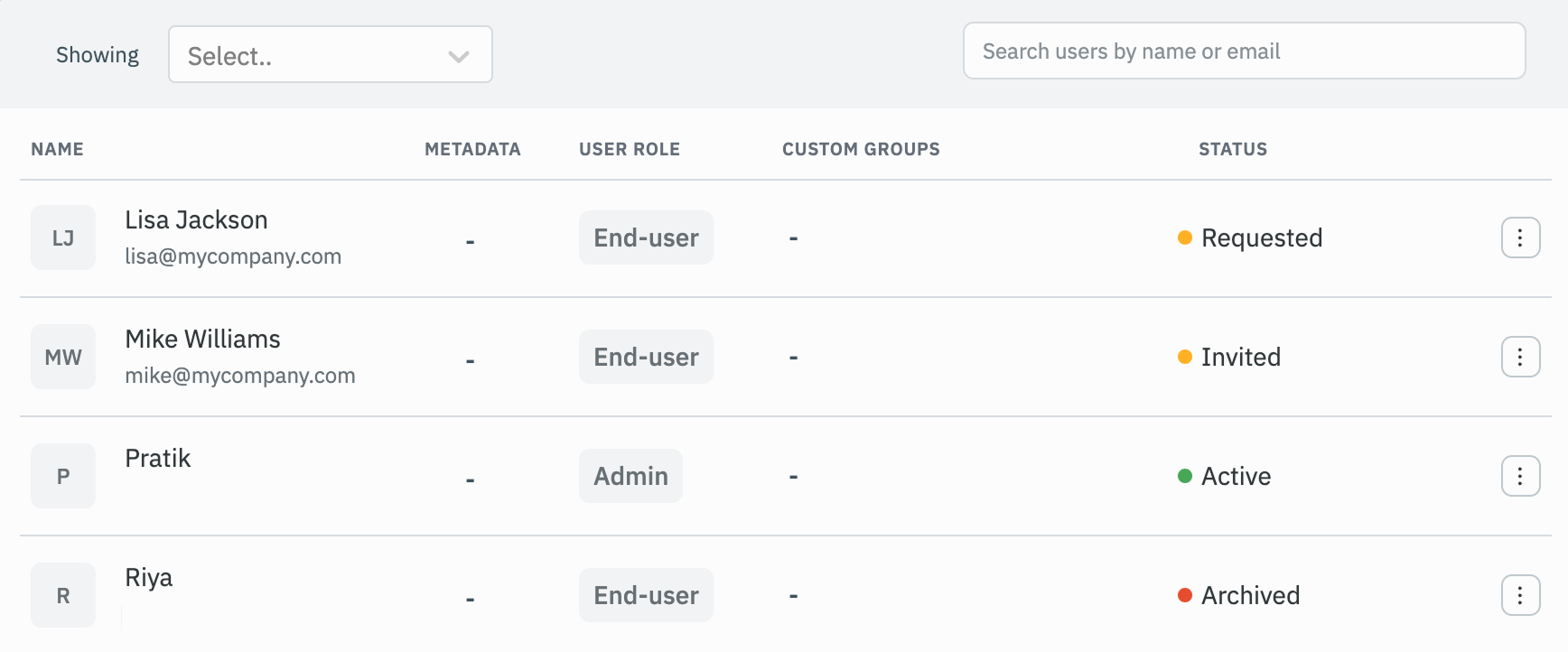
Bulk Upload Users
Admins can add users to a workspace, or update existing users, in bulk by uploading a CSV file. Each row holds a user's email address, role, custom groups, metadata and status. New users receive an email with instructions to join the workspace.
This page describes the Bulk upload users flow available on the Enterprise Edition. On the Community Edition, you can only add new users from a CSV file. See Community Edition.
Bulk Upload Users
Enterprise PlanRole Required: Admin
-
Click on the settings icon (⚙️) on the bottom left of your dashboard.
-
Go to Workspace settings > Users.
(Example URL -https://app.corp.com/nexus/workspace-settings/users) -
Click on the Bulk upload users button.

-
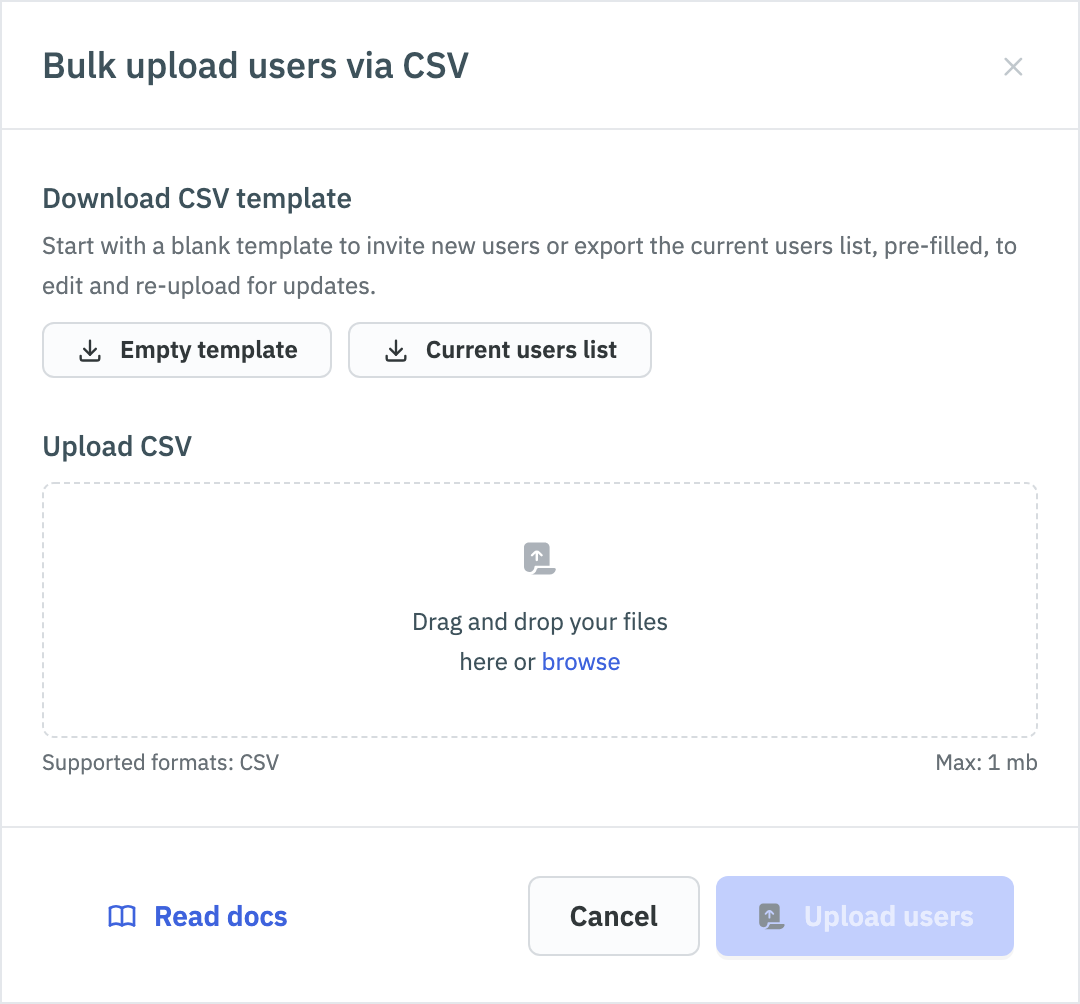
In the Bulk upload users via CSV drawer, download a template:
- Empty template: A blank CSV file with the supported columns. Use it to add new users.
- Current users list: A CSV file of every user in the workspace, including archived users, pre-filled with their current details. Edit it and upload it back to update users.
 caution
The current users list includes each user's metadata in plain text. Handle the file as sensitive data.
-
Fill in the CSV file. See CSV Columns and How Rows Are Applied.
-
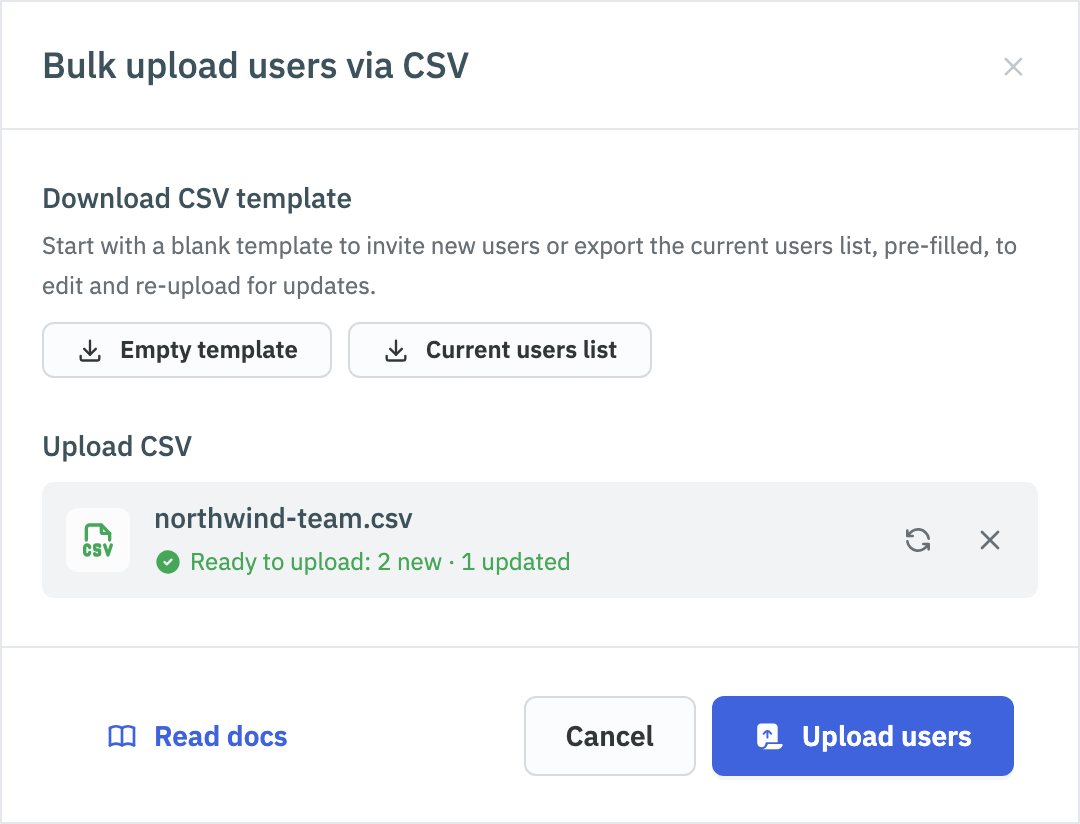
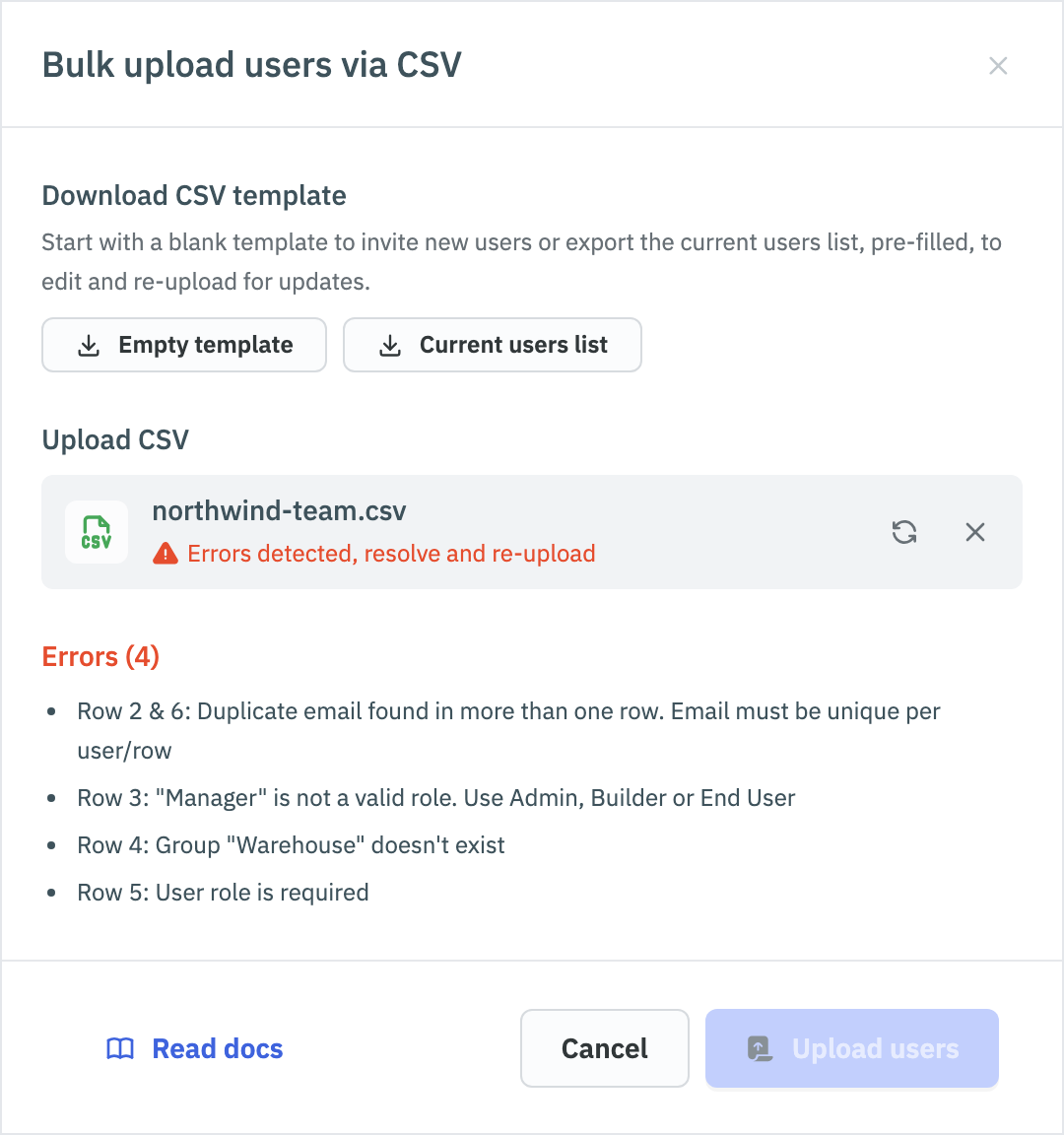
Drag and drop the file into the Upload CSV area, or click browse to select it. ToolJet checks the file as soon as you add it, without changing any users.
- If the file is valid, the drawer shows a summary of the changes, for example
Ready to upload: 2 new · 1 updated. - If the file has problems, the drawer shows Errors detected, resolve and re-upload and lists each error with its row number. Fix the file, then use the replace icon to upload it again.
- If the file is valid, the drawer shows a summary of the changes, for example
-
Click Upload users. The button is enabled only after the file passes the check.
The workspace's user list refreshes and a confirmation message shows what changed, for example Users 2 added, 1 updated.
CSV Columns
The first row of the file must contain the column names. Column names aren't case-sensitive and can be in any order. Only the Email column is required in the file, so you can leave out columns you don't want to change.
| Column | Values | When the cell is blank |
|---|---|---|
| First Name | Text. If the file has a name column, every row needs a first name or a last name. | Allowed if the row has a last name. For existing users, see How Rows Are Applied. |
| Last Name | Text. If the file has a name column, every row needs a first name or a last name. | Allowed if the row has a first name. For existing users, see How Rows Are Applied. |
| The user's email address. Required in every row. | Not allowed. | |
| User Role | Admin, Builder or End User. | Not allowed. To keep an existing user's role, enter their current role or leave the column out of the file. |
| Group | Custom groups as a JSON array, for example ["Sales","Support"]. Sales|Support also works. Use [] to remove the user from all custom groups. | The user's groups are unchanged. |
| Metadata | A JSON object, for example {"department": "Sales"}. | The metadata is unchanged. |
| Status | Active or Archived. | The status is unchanged. |
Any other column name makes the file invalid.
How Rows Are Applied
ToolJet matches each row to a user by email address:
- New email: The user is added to the workspace and receives an invitation email. A new user needs a User Role and a first or last name, and can't have the status
Archived. - Existing user: An email that belongs to a user in the workspace, whether active, invited or archived, updates that user. Columns left out of the file, and blank Group, Metadata and Status cells, leave the user unchanged. Otherwise:
- User Role sets the user's role.
- Group replaces the user's custom groups with the groups listed in the cell.
- Metadata replaces the user's metadata with the JSON object in the cell.
- Status set to
Archivedarchives the user. Status set toActiveon an archived user unarchives them: their status changes to Invited and they receive a new invitation email. - Changing a user's role to End User transfers ownership of their apps to you and removes them from custom groups that have edit permissions, the same as changing the role from the Users page.
- Only super admins can change the names of existing users. When a super admin uploads the file, the user's name is set to the First Name and Last Name cells as they are, so a blank cell clears that part of the name. For other admins, the name cells of existing users are ignored.
A row that matches a user and changes nothing is counted as unchanged.
ToolJet applies the whole file at once. If any row has an error, no users are added or updated.
Limits and Validation
- File size: Up to 1 MB by default. Self-hosted instances can change this with
ORG_USERS_BULK_UPLOAD_MAX_FILE_SIZE_MB. - Rows: Up to 250 users per file by default. Self-hosted instances can change this with
ORG_USERS_BULK_UPLOAD_MAX_ROWS. See Environment Variables. - Duplicate emails: Each email can appear in only one row.
- Groups: Every group in the Group column must already exist in the workspace. End users can't be added to custom groups that grant builder permissions, and groups can't be added to a user who stays archived.
- Admins: The workspace must keep at least one active admin, and you can't archive yourself.
- License: If the file needs more user, Builder/Admin or End User seats than your plan has left, the upload is rejected.
- Email restrictions: Users whose email domain isn't allowed in the workspace, or whose account is suspended, can't be added. A user who is archived across the instance can only be activated by a super admin.
Community Edition
On the Community Edition, you can add new users from a CSV file. Existing users can't be updated this way.
-
Go to Workspace settings > Users and click on the Add users button.
-
Switch to the Upload CSV file tab and download the template.
-
Fill in the following columns:
Column Required/Optional Example First Name Either first or last name is required. John Last Name Either first or last name is required. Doe Email Required [email protected] User Role Required Admin Group Optional. Separate multiple groups with |.Manager -
Upload the file (up to 1 MB) and click Upload users.
Email Invitation
Pre-Requisite: Setup SMTP Server
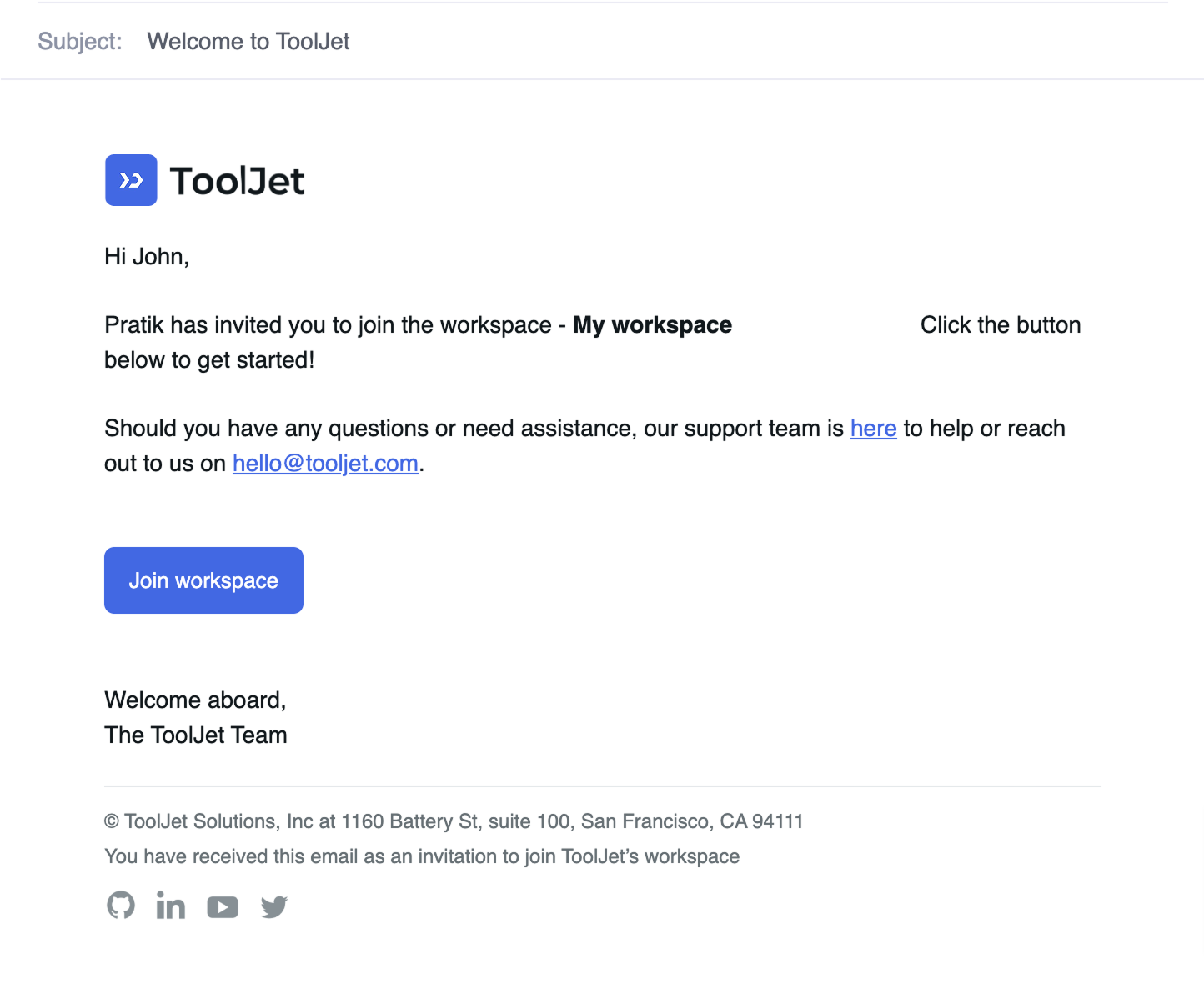
Once a user is invited to the workspace, they will receive an email containing a unique workspace invite link. By clicking the link, the user will be redirected to the workspace login or signup page to complete the onboarding process.
Invitation URL
On Self-Hosted ToolJet, admin users can copy unique invitation URL and share with the user.

User Status
Admin users can track the status of users as follows:
Self-Hosted ToolJet
- Invited: The user has been invited to join the workspace.
- Active: The user is a member of the current workspace.
- Archived: The user has been archived by the admin.
ToolJet Cloud
- Requested: The user has been invited to the current workspace but doesn't have a ToolJet account.
- Invited: The user has been invited to the current workspace and has a ToolJet account.
- Active: The user is a member of the current workspace.
- Archived: The user has been archived by the admin.